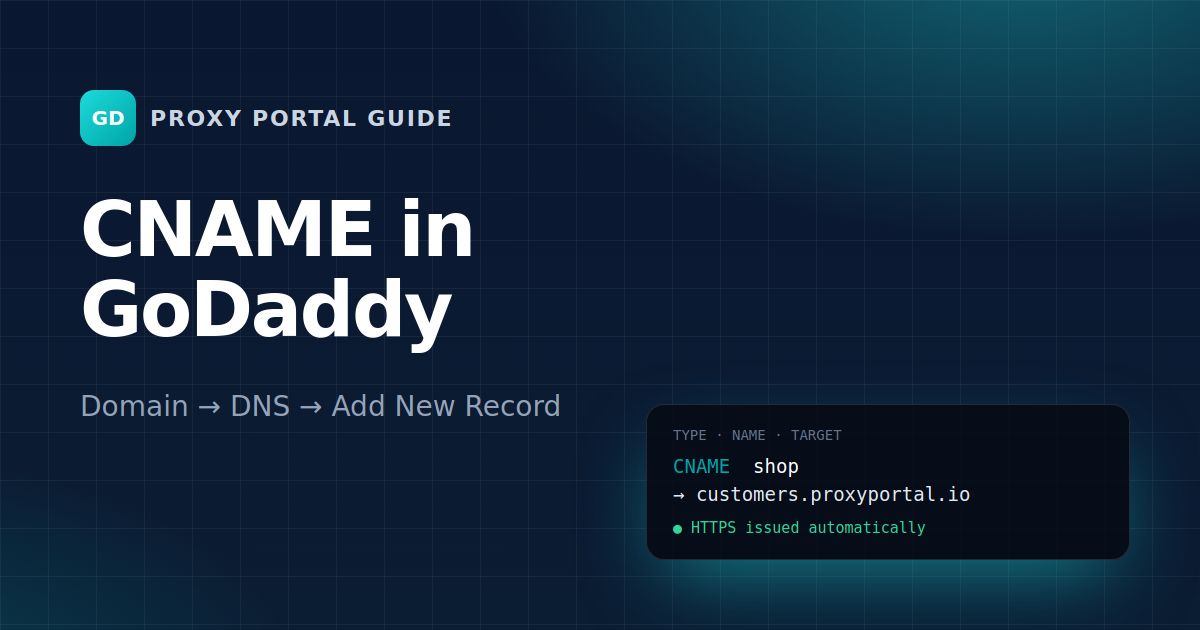
If your domain was bought at GoDaddy and you never changed its nameservers (they end in domaincontrol.com), add the record in GoDaddy. New to this? Read the overview first.
1. Open DNS management
- Log in at godaddy.com and open your Domain Portfolio (My Products → Domains).
- Click your domain, then the DNS tab (on some accounts: Manage DNS).
2. Add the record
Click Add New Record and fill it in:
- Type: CNAME
- Name:
shop - Value:
customers.proxyportal.io - TTL: 1 Hour (the default is fine)
Press Save. GoDaddy may ask you to confirm; it can take a few minutes before the record is used.
Want www instead of shop?
GoDaddy already has a www CNAME pointing to @. Edit that record (pencil icon) and change its value to customers.proxyportal.io. Don't add a second www.
The bare domain
GoDaddy doesn't allow a CNAME on @. Connect www.yourbrand.com in the panel, then send the bare domain there: in the domain's settings choose Forwarding → Add forwarding, forward to https://www.yourbrand.com, type Permanent (301).
3. Connect it in the panel
Go to Storefront → Domain in the merchant panel, enter shop.yourbrand.com (or www.yourbrand.com) and press Use this domain. GoDaddy records usually work within 10 to 30 minutes; HTTPS follows automatically about a minute later.
Common GoDaddy mistakes
- Typing
shop.yourbrand.comin Name: GoDaddy adds your domain itself, so you'd getshop.yourbrand.com.yourbrand.com. Type onlyshop. - An old A record called
shopfrom a website builder: delete it, keep only the CNAME. - Domain using another provider's nameservers: then GoDaddy's DNS page says your nameservers are elsewhere. Add the record there instead.